




































Plays from YouTube (privacy-enhanced mode) only after you press play. Privacy
Budget vs Actual: Track Every Dollar
How do I track the real cost of a job against the budget and forecast where it will finish?
Open Finance, Budgets, and add one budget line per estimate division with its estimate total as the original. An approved purchase order becomes committed (a draft commits nothing), and a paid invoice linked to the order moves that amount from committed to actual. Variance is the plan minus committed and paid, red when over and green when under. For the estimate at completion, add what you have paid to what is still on order and keep the budget for work not yet bought; the example job lands just over budget.
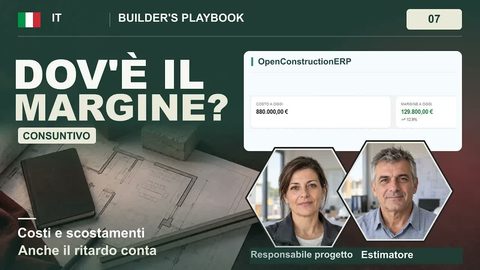
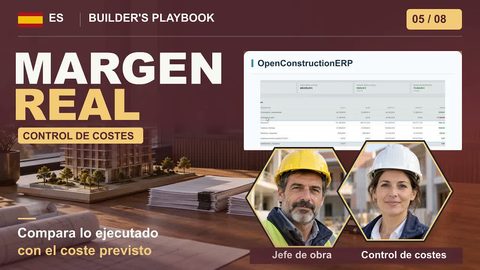
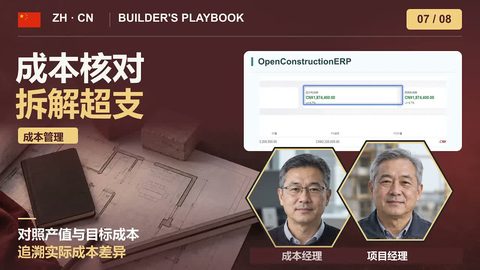
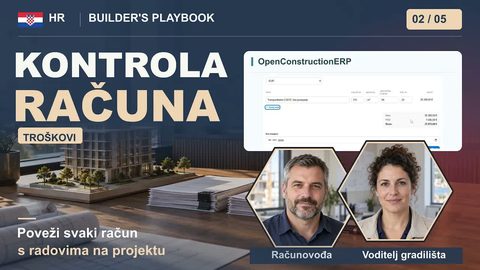
Compare your construction budget with recorded commitments and payments in OpenConstructionERP. This lesson shows how to identify cost differences and build an estimate at completion for the example project.
In this video
- In the workflow shown, the estimate provides the starting budget: Original is the planned amount, Committed is the outstanding order value, Actual reflects recorded payments, and Variance shows the difference from budget.
- Open Finance and the Budgets tab, then add one budget line per division of your estimate, with the division number and its estimate total as the original.
- Approve the framing purchase order in Procurement: a draft commits nothing, an approved order is a commitment.
- Record the framing sub's invoice in the Invoices tab, linked to the order, then approve it and mark it paid. The payment is what moves the actual.
- Read the variance column: red is over, green is under. The color is your early warning.
- Forecast the finish: add what you have paid to what is still on order, keep the budget for the work you have not bought yet, and you have your estimate at completion.
You will produce
A budget with one line per estimate division showing original, committed, actual and variance, and an estimate at completion that lands just over budget because of the framing overrun.
Transcript
0:00 The budget
A budget you set and never look at is just a guess. Track every dollar against it, and you see the job slipping before it costs you. This lesson shows you how. Here's the plan. First, set the budget from your estimate. Then record the real costs as invoices are paid. Then read the variance, over or under. Finally, forecast the finish. The estimator turns the estimate into a budget. The project manager tracks it. Accounts enters the invoices. And you watch the bottom line. Your budget is the estimate, line by line. Original is what you planned. Committed is what you have ordered and not yet paid. Actual is what you have paid. Variance tells you if it all still fits. Open Finance, and the Budgets tab. This is where you track every dollar against the plan. There is no financial data yet, and the budget is empty, so build it first. Click New Budget Line, and add one line for each division of your estimate: concrete, framing, roofing, finishes, and plumbing and electrical. For each one, pick a category, then type the division number and its estimate total as the original. The other three go in the same way. All five lines are in, and the originals add up to your direct cost.
1:19 Actuals
The award drafted a purchase order for the framing, and a draft commits nothing. Open Procurement, and approve the order. Now it is a commitment. Back on the budget, it shows as committed against the framing budget, before a single invoice is paid. Actual cost comes from paid invoices. The framing sub sends its first invoice. In the Invoices tab, create a new one. It is payable, from Sub B, and linked to the framing order, so you see how much of the order is still open. Send it for approval, approve it, and mark it paid. The payment is what moves the actual. Back on the budget, the actual for framing has moved. The paid part of the order left committed and became actual, so the variance has not changed. What you planned, what is still on order, and what you have spent now sit side by side.
2:09 Variance
Variance is what you planned, minus what is still on order and what you have paid. Under budget is green. Over is red. The color is your early warning. Read down the variance column. Framing is red, a little over, because the winning bid came in above your estimate. The other divisions are green, with nothing spent yet. Now you know where to look.
2:32 Forecast
Now look at the whole job. The cards on top sum it up: the total budget, what is committed, what is paid, and what is left. The bar shows how much of the budget is spent so far. So we will work out the forecast ourselves. To forecast the finish, add what you have paid to what is still on order, and keep the budget for the work you have not bought yet. That is your estimate at completion. Here, the whole job lands just over budget, by the framing overrun. Set it against your budget, and you see the finish coming. That is budget versus actual: a budget from your estimate, real costs from paid invoices, a variance you can read at a glance, and a forecast of the finish. Put your current job on it and watch one division for a month. OpenConstructionERP is free and open source. Download it today and start working.